Chat with agents
One-to-one, fully private conversation with an agent, outside any issue. The agent starts with no issue context and never auto-creates issues — but it acts with your workspace access when you explicitly ask it to.
Chat fits work that hasn't formed a clear issue yet: sorting out ideas, checking on the workspace, discussing an approach, or having an agent finish a small task first.
Chat is a one-to-one conversation between you and an agent — stepping outside the issue board. The agent starts with no issue context — it isn't looking at your board and won't turn the conversation into issues on its own — and the entire conversation is fully private (nobody else in the workspace, including admins, can see it). It fits discussing an approach with an agent, brainstorming, or asking a question that does not belong to any issue.
A chat is not bound to any issue: the agent doesn't automatically receive an issue's description and comments, but it can still use the Multica CLI to query workspaces, projects, issues, and skills within its permissions.
A chat can also carry background. Click + at the bottom left of the input and choose Project context to attach a project to the conversation; when the agent runs, it receives that project's description, repositories, and other resources.
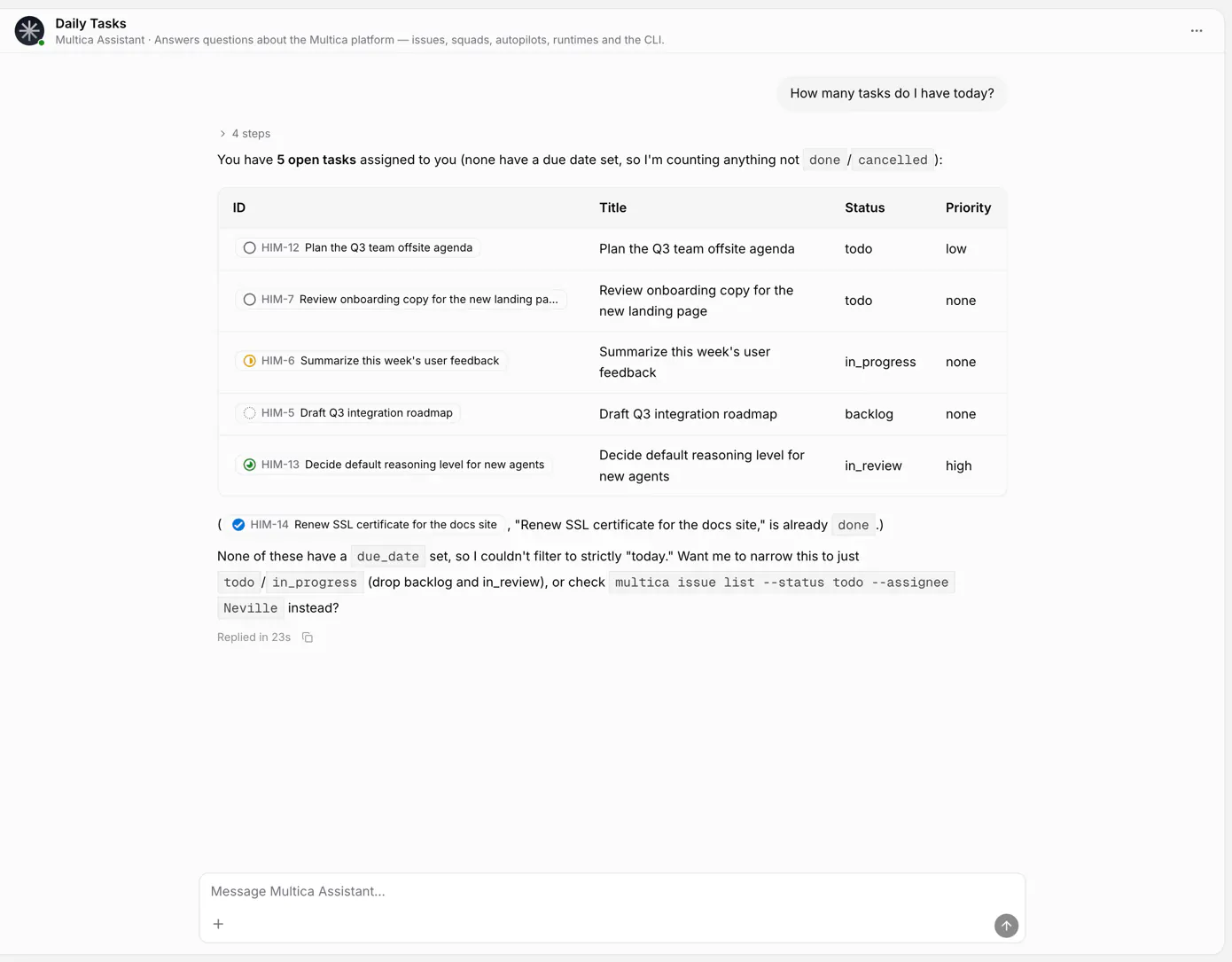
Start a conversation
- Open Chat in the sidebar.
- Click new and pick an agent you have permission to run.
- Type a message; you can also attach images or files.
- After you send, Multica creates a run for the message, and the reply comes back to the current conversation.
If the runtime is offline, the message waits until it comes back online. Once the agent is archived, or you lose permission to run it, you can't send new messages.
Before the first message, Chat shows up to three suggestions configured for the selected agent. Selecting one copies its full prompt into the composer without sending it, so you can adapt it first. Agents without configured suggestions use localized general-purpose examples.
Chat vs. issues
| Need | Better fit |
|---|---|
| Quick questions, exploring an approach, or private drafts | Chat |
| A clear assignee, status, priority, and deliverable | Issue |
| Letting teammates see the background and continue the discussion | Issue |
| A quick look at workspace information with no work record needed | Chat |
Direct chats created in Multica are visible only to their creator; other workspace members and admins cannot read them. Conclusions the team needs to see together should be written into an issue, a project description, or a skill.
Multi-turn context
A conversation tries to continue the original session in the AI coding tool, so later messages don't need to repeat earlier content. Multica stores the session ID and routes subsequent runs to a runtime that can access that session.
If the local session no longer exists, the context can't be continued, or the previous error shouldn't be reused, the runtime starts from a fresh session. The conversation's message history is kept either way.
Watch and stop a run
While the agent runs, the UI shows the current phase and tool activity. Expand View details to inspect the run in full.
To interrupt, click the stop button next to the input. Content already returned to the conversation is kept; input not yet processed is restored to the editor when possible.
Organize the conversation list
Conversations can be renamed, pinned, archived, and deleted:
- Pin keeps frequently used conversations at the top of the list;
- Archive moves a conversation to Archived and makes it read-only;
- Unarchive lets you send messages again;
- Delete permanently removes the conversation and its messages.
If a conversation is bound to an external channel (such as Slack), archiving breaks the binding; unarchiving does not restore it — bind again.
Deleting a conversation cannot be undone and stops any runs in it that haven't finished. Archive instead when you just don't need it for now.
Next steps
- Assign issues to agents — turn a discussion into trackable work.
- Inbox and subscriptions — follow team activity that needs you.
- Providers matrix — session and model capabilities per AI coding tool.